Contents
- Overview
- * User role types
- TVU Home features
- System requirements
- Getting started
- * TVU Home Quick Start Guide – Owners role
- Dashboard interface – Owner controls
- Members tab controls
- Usage tab
- Resources tab
- Adding Agent devices to Cloud services
- Port mapping
- Billing tab
- Purchasing tokens
- Transferring tokens
- * TVU Home Quick Start Guide – Member role
- Dashboard interface – Member controls
- Members tab controls
- Quitting the group
- Resources tab
- Adding Agent devices to Cloud services
- Port mapping
- * TVU Home Quick Start Guide – Admin role
- Dashboard interface – Admin controls
- Members tab controls
- Usage tab
- Resources tab
- Adding Agent devices to Cloud services
- Port mapping
- * TVU Home Quick Start Guide – Finance role
- Dashboard interface – Finance controls
- Usage tab
- Resources tab
- Adding Agent devices to Cloud services
- Port mapping
- Billing tab
- Purchasing tokens
- Transferring tokens
TVU Home User Guide
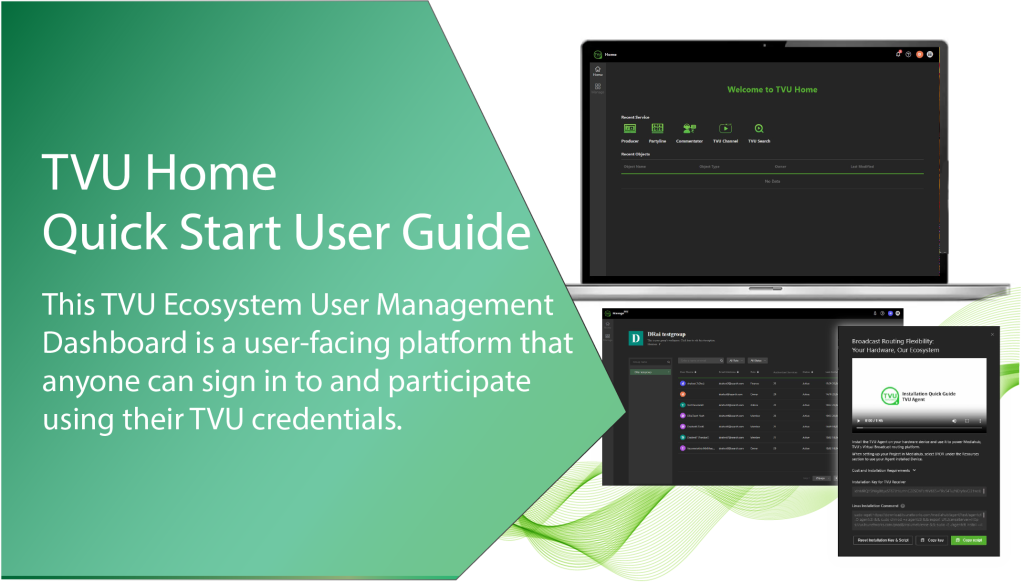
TVU Home overview
Note: This User Guide supports the TVU Home version v1.0.104 and above.
TVU Home is a user-facing platform that anyone with TVU credentials can sign in to and use. The Home landing page enables users to access services, recent objects (e.g., TVU services), and status. Users with owner roles can set up and manage user groups and subgroups on the management dashboard. TVU Services and user roles can be assigned, managed, and monitored from this dashboard.
Users sign in to the TVU Home landing page and click the Manage > Members tab. They then navigate to their management dashboard to view all members assigned to their group or subgroup and have full editing rights to their own user information.
User role types
This version of TVU Home allows users to familiarize themselves with the platform and explore basic features, controls, and functions across the following four user role types.
Owner
The owner has administrative access to the members and groups they set up. Owners can set up user-level and sub-level groups, invite members, assign member roles, manage permissions, and monitor user-level TVU account content by group assignment. Tokens can be purchased, and token usage can be monitored from the management dashboard’s Billing tab.
Member
Within the Group workspace, a Member can view users and their assigned roles. Each group member can change their avatar (profile image), reset their password, and view which TVU services are assigned to them. In addition, the group member can quit at any time if desired.
Admin
The Admin role only has administrative access to Member users and the groups they set up.
Admin users can set up user-level and sub-level groups, invite members, assign member roles, manage permissions, and monitor user-level TVU account content by group assignment. As an Admin, you can add or remove users from your group, entitle a service, or revoke a user’s service from their management dashboard.
Finance
Finance users have only administrative rights to their accounts; they are not part of any other group. Tokens can be purchased, and token usage can be monitored from the Home management dashboard Billing tab.
TVU Home features
- TVU Home page – The TVU Home landing page provides direct access to recent services, such as TVU Producer, Partyline, Commentator, TVU Channel, and TVU Search without logging in to each service. The Recent Objects panel displays the user’s account activity directly from the Home landing page.
- TVU Services navigation – Users can click the TVU Services navigation (waffle) icon to quickly open a service that is not currently displayed in the Recent Services section on the Home landing page.
- Manage tab – The Manage tab has four sub-tabs:
Note: Sub-tabs that display are dependent on the users role assignment. Refer to the respective Quick Start chapter for more information.
- Members tab: The Members tab opens the Group management dashboard and displays controls based on the Owner, Member, Admin, or Finance user role type. For example, an Owner’s management dashboard will display different controls than the Member’s dashboard.
- Usage tab: Users can view their hourly usage history by date, product, and service name.
- Resources tab: The Resources tab enables Agent device management, box pool folder set-up and configuration, and Agent software installation for authorized roles.
- Billing tab: Accessible to owners and finance users. TVU Home enables account owners and finance users to manage their TVU Token purchases, usage, and balances.
System requirements
Compatibility:
- iPad – Requires iPadOS 12.0 or later.
- Mac – Requires macOS 12.0 or later.
- Windows 8 and higher (Chrome browser)
Getting started
Any TVU account holder has free access to TVU Home. This Quick Start User Guide includes a section for each user role type, explaining their respective management dashboard interface features and controls.
Note: Setting up Agent resources is the only paid feature in TVU Home.
TVU Home Quick Start Guide – Owner role
Signing in to TVU Home
There are two methods an account “Owner” can use to sign in to TVU Home:
- If you are signed in to a TVU service, click the Services (waffle) icon and select Home in the menu.
- Open a web browser and enter: https://home.tvunetworks.com
The Home login page will display.
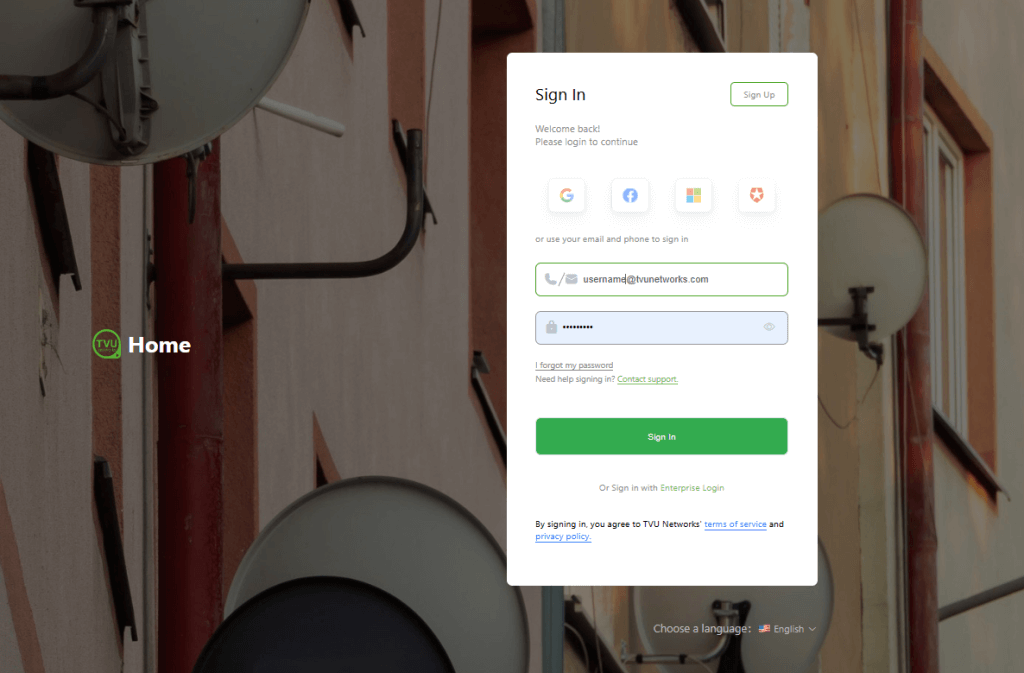
Sign in with your account credentials:
- Enter your email and password.
- Click Sign in.
TVU Home – Landing page
The Welcome to TVU Home landing page is displayed when you successfully sign in to TVU Home.
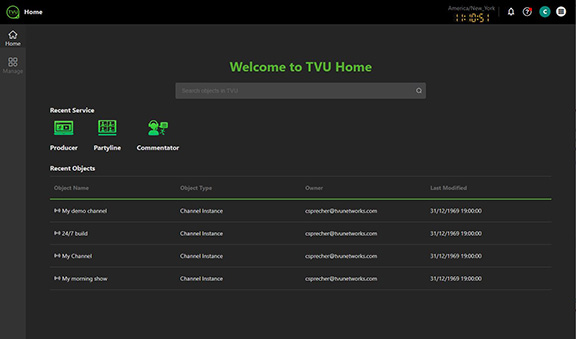
The Home landing page for the owner role includes:
- TVU Home page: The TVU Home landing page provides direct access to recent services, including TVU Producer, Partyline, Commentator, TVU Channel, and TVU Search, without logging in to each service. The Recent Objects panel displays the user’s account activity directly from the Home landing page.
- TVU Services navigation: Users can click the TVU Services navigation (waffle) icon to quickly open a service that is not currently displayed in the Recent Services section on the Home landing page.
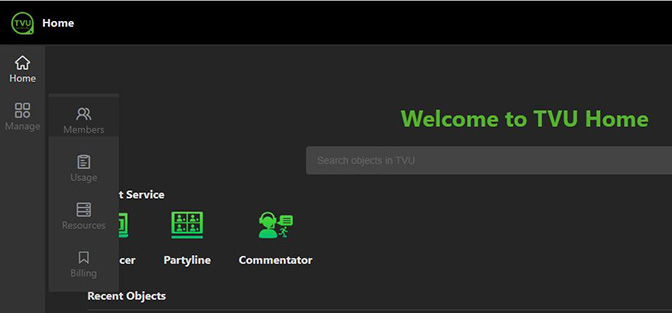
- Manage tab: Members and owners can use this tab as their primary tool for member and owner-related tasks. Click the Manage tab to access the Members, Resources, Usage, and Billing tabs.
- Members tab: The Members tab opens the Group management dashboard and displays controls based on the Owner user role type.
- Usage tab: Users can view their hourly usage history by date, product, and service name.
- Resources tab: The Resources tab enables Agent device management, box pool folder set-up and configuration, and Agent software installation for authorized roles. A box pool folder can store multiple boxes, each of which is a physical device on which you have installed the Agent software.
- Billing tab: Accessible to owners and finance users. TVU Home enables account owners and finance users to manage their TVU Token purchases, usage, and balances.
Dashboard interface – Owner controls
Account owners have administrative rights to their members’ accounts. Account owners can:
- Manage a group and a subgroup workspace
- View Usage time, storage status, and router usage.
- Add users and sub-users
- Add resources and services
- Invite new members
- Assign roles to each member
- Add members to other subgroups
- Delete or disable a member’s access
- Authorize, manage, and monitor a member’s TVU services
- Purchase tokens
- Add Agent devices to Cloud services
Members tab controls
The Members tab opens the Group management page. When you sign in as an account owner, you can manage your members on the Group page by clicking the Manage > Members tab.
Note: A group can have multiple owners.
The Members tab allows you to:
- Edit your Group Name and add group information
- Add a new user
- Add a profile picture (avatar)
- Add subgroup workspaces
- Add an email domain to your group
- Assign roles to sub-users
- Manage all aspects of your group
Updating your Group information
To update your Group information:
- Click the Manage > Members tab.
- The Group management dashboard will display.
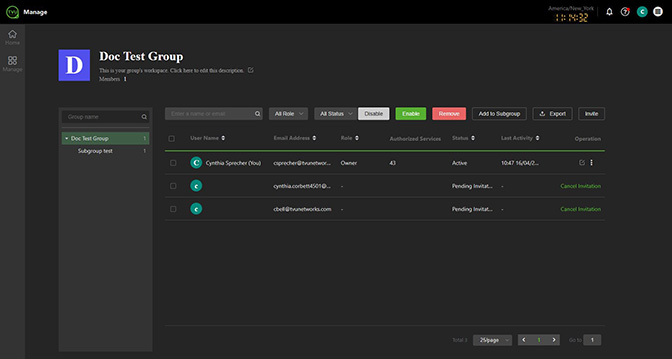
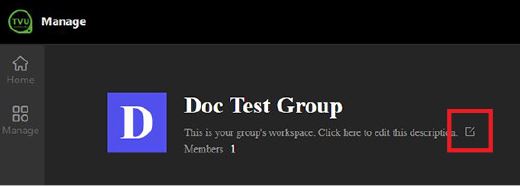
- Click the edit icon below the Group name.
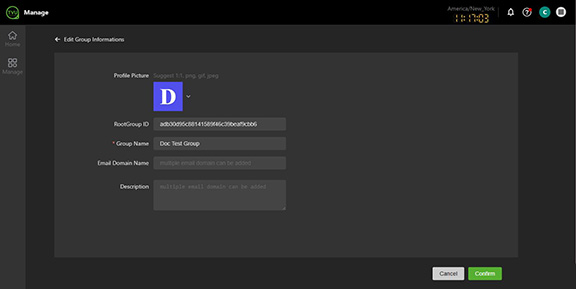
- The Edit Group Information page opens.
- Enter a Group Name and page Description.
- To update your Profile picture, hover your mouse over the picture and click the Edit icon.
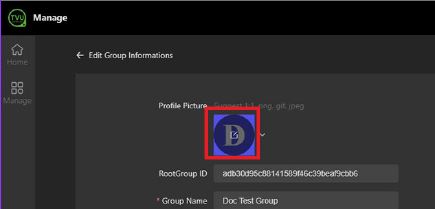
- The Add Profile Picture pop-up will display.
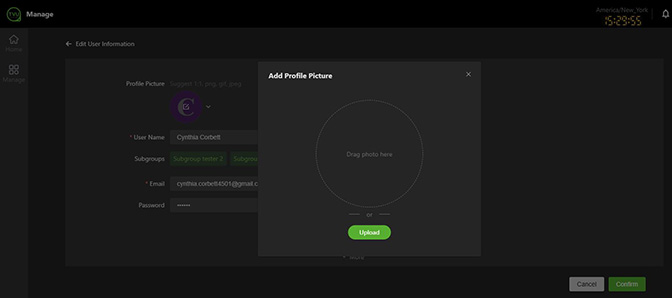
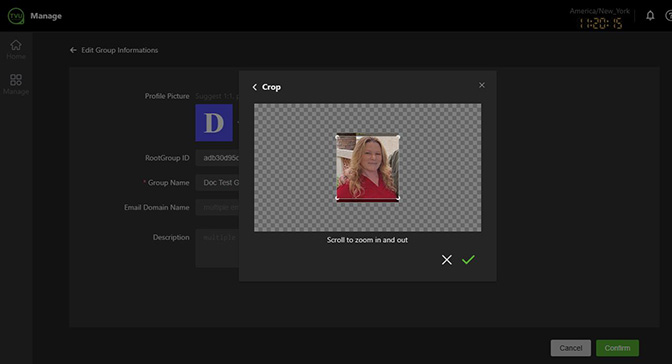
- Drag or Upload a 1:1 image in png, gif, or jpeg format.
- Click the green check mark to save your Avatar picture.
- Click the green Confirm button.
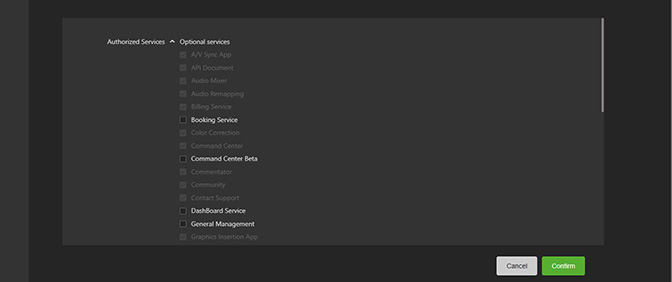
- Scroll down to the Authorized Services panel and select the Optional Services that apply or disable services.
- Click the green Confirm button.
Creating a subgroup
When you create a subgroup, it becomes part of your group workspace. You can invite group members as sub-users into this workspace and assign roles to each user.
To create a subgroup:
- Click the Manage > Members tab.
- Hover your mouse over Subgroup, then click the Plus.
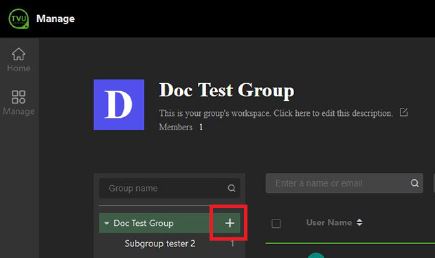
- The Create a subgroup window will display.
- Enter a subgroup name, your email domain name (if you want to assign a domain to the subgroup), and a description of your subgroup (optional).
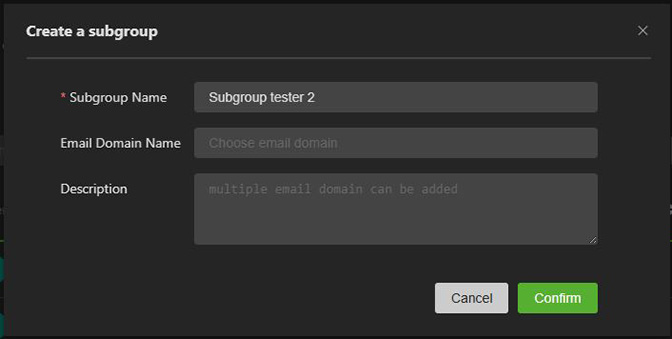
- Click Confirm.
- The new subgroup is displayed under your Group name.
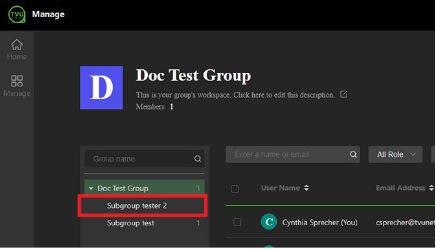
- To configure and manage Subgroups, click a Subgroup in the left panel to open the Subgroup page.
- You can now invite users to your group and assign them to subgroups.
Adding yourself to a subgroup
To add yourself to a subgroup:
- Select your Group Name in the left panel.
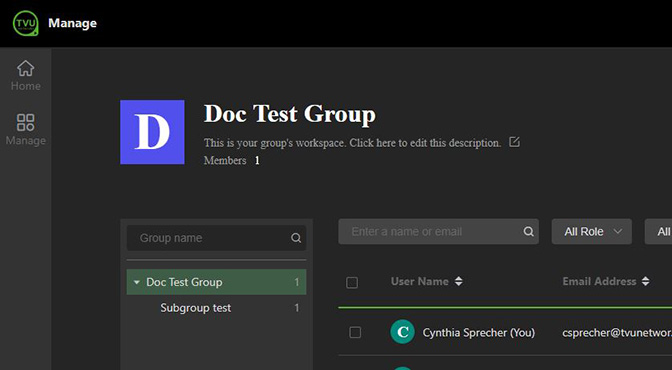
- Highlight (You) in the user list.
- Click the three-dot icon in the Operation column.
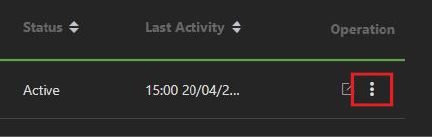
- Click Add to other subgroup.
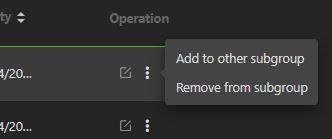
- The Add to subgroups window will display.
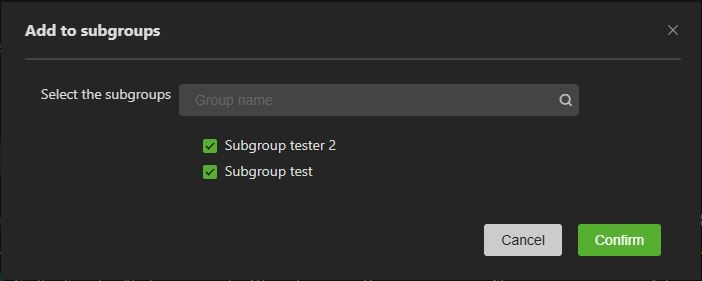
- Click the subgroup checkbox desired, then the Confirm button.
Inviting users to your group
After you have created your subgroups, you can invite users to your group and subgroups.
Note: The invitation procedure only accepts users with an active TVU account.
To invite a user to your group:
- Click to highlight your Group Name.
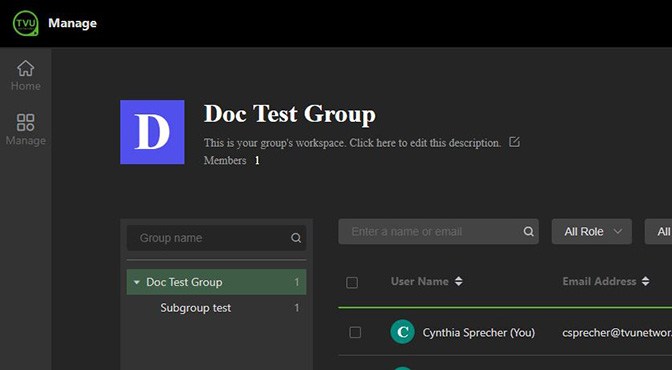
- Click the Invite button.
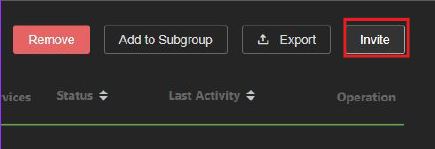
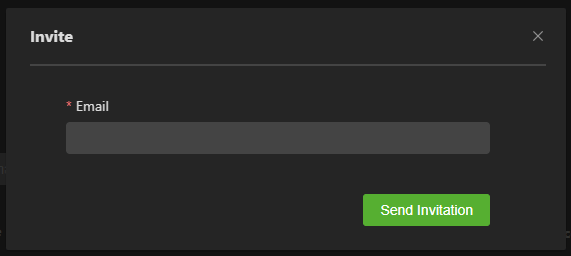
- The Invite window will display.
- Enter the user’s Email address you want to invite to your group, then click Send Invitation.
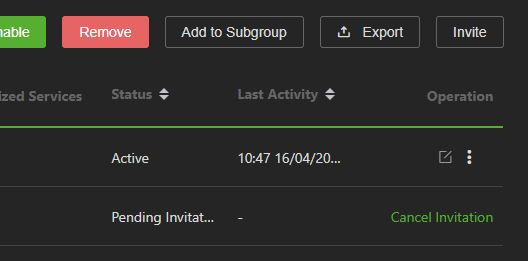
- The dashboard will display the invited user and a “Pending Invitation” notification in the dashboard status column until the invitation is accepted.
- The owner can cancel the invitation by clicking the green Cancel Invitation in the Operation column.
- The invited user receives an email to accept the invitation. After accepting the invitation, the TVU Home page will open. The new user clicks the Bell icon at the top-right of the page to complete the process, then clicks the Join or Ignore button.
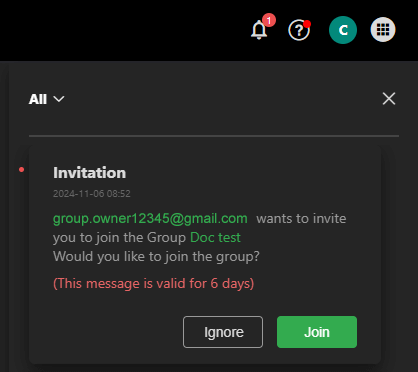
After joining the group, the user’s name is displayed in the user list. Users can click the edit icon on the Groups page to edit their user information.
Note: The group owner receives a Bell icon notification when the user has joined the group.
Adding a role to the new user
Owners can assign a Member or Admin role to a new user. The Admin role allows co-admin rights, whereas the Member role does not.
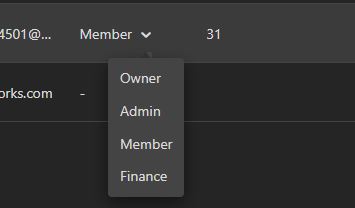
To add a role to the new user: click the user’s Role drop-down menu and select Admin or Member.
- Click Manage > Members tab and highlight your group name.
- The new member appears in the Group list on the Manage page.
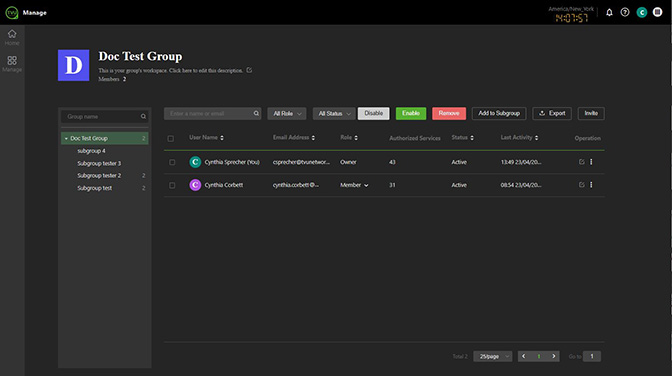
- Click the user’s Role drop-down menu and select Admin or Member.
Note: Choosing Admin allows the user administrative rights.
Adding members to other subgroups
To add a user to a subgroup:
- Click the three-dot icon and select Add to other subgroup.
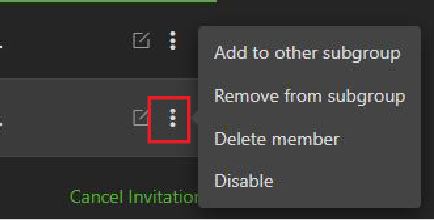
- Select the Subgroup checkbox in the Add to Subgroup window, then click Confirm.
Editing a member’s access
To edit and manage a Subgroup member’s access:
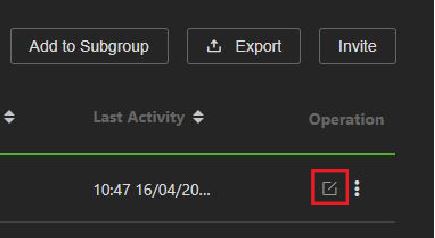
- Click the Manage > Members tab and locate the member’s name. Click the Edit icon in the Operation column.
- The Edit User Information window will display.
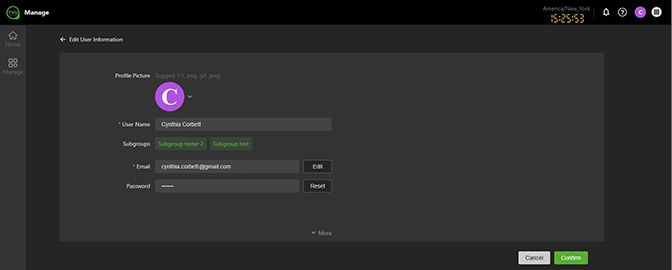
- Configure the Subuser’s information, then click Confirm.
- When finished, click ‹— Edit User Information at the top of the page to return to the Subgroup page.
- To remove a Subgroup member, click the three-dot icon and select Remove from subgroup.
Deleting or disabling a member’s access
To delete or disable a user in a group:
- Click the three-dot icon and select Disable or Delete member from the menu.
- If you need to batch Enable or Disable a group of users, select each user’s checkbox and click the Disable or Enable button.
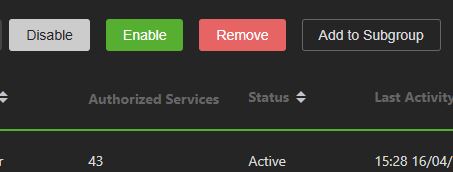
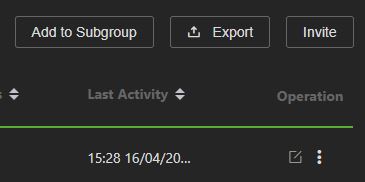
Authorizing, managing, and monitoring a member’s services
As a group owner, you can authorize access to services and manage group and subgroup users from the Manage > Members tab. Users and their activity are easily monitored and sorted, and can be exported to Excel by clicking the Export button.
Usage tab
The Usage tab displays the Usage time overview.
- Click the Manage > Usage tab.
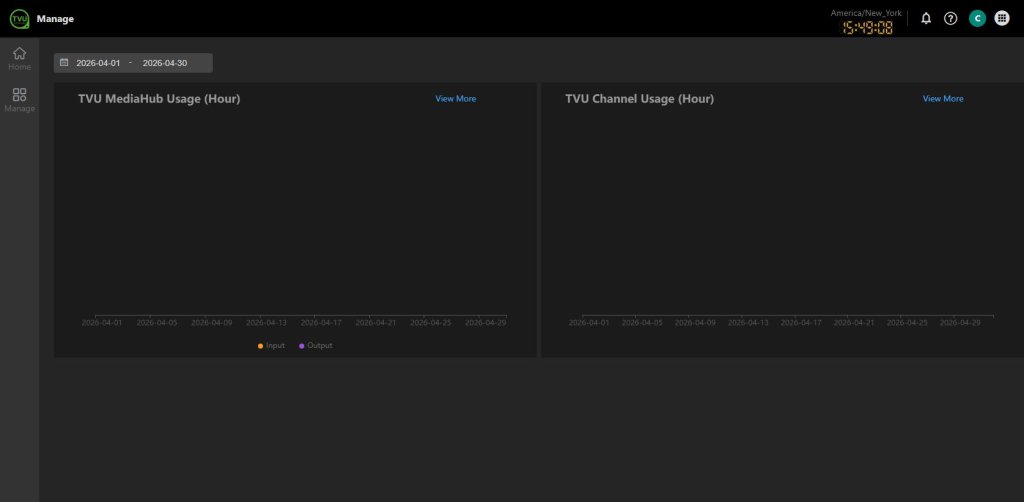
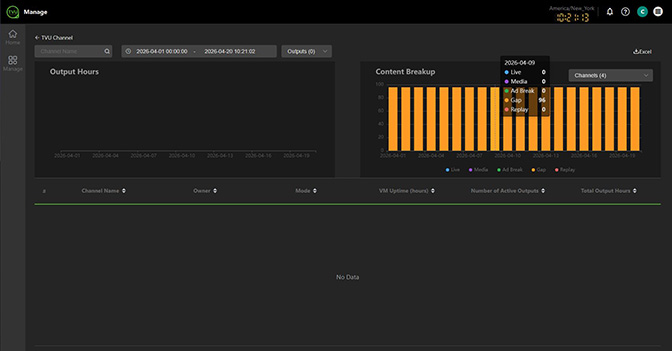
- Click View More for detailed information.
- Hover over the charts for more information.
Resources tab
The Resources tab allows users to manage an Agent device, set up and configure a box pool folder, and install Agent software.
Note: A box pool folder can store multiple boxes, each of which is a physical device where the user has installed the Agent software.
The Resources tab allows Agent software to be installed on a device. The Agent integrates with MediaHub instead of using cloud-based resources. The agent can be installed on a user’s resource to run programs.
Adding resources and services
The Resources tab is where Owners can create Box pool folders and view, add, configure, and manage Agent devices.
To add resources and services:
- Click the Manage > Resources tab.
- The Manage page opens and displays Resources.
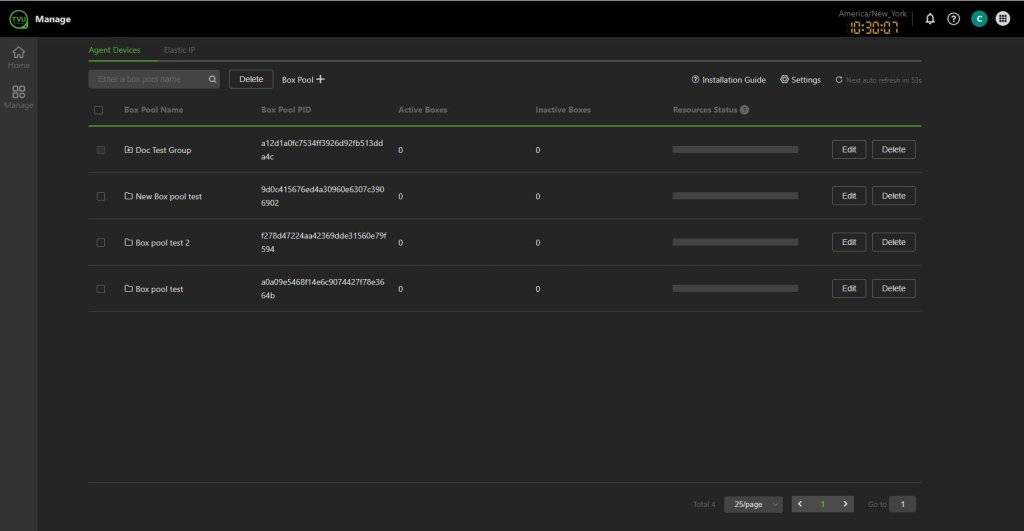
- To add a new box pool folder, click Box Pool +.
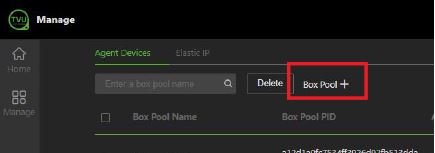
- The Create a new box pool window will display.
- Enter a Box Pool Name and click Confirm.
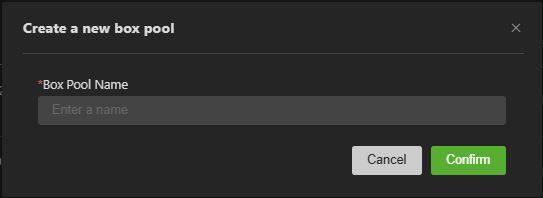
- Your new box pool folder has been added to the Agent Devices list.
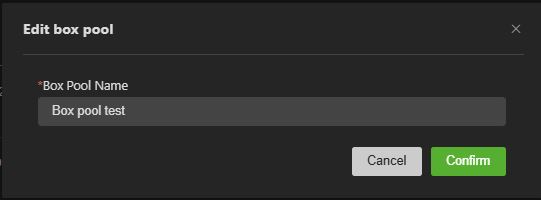
- To delete a box pool, click the Delete button.
- To rename the box pool, click the Edit button.
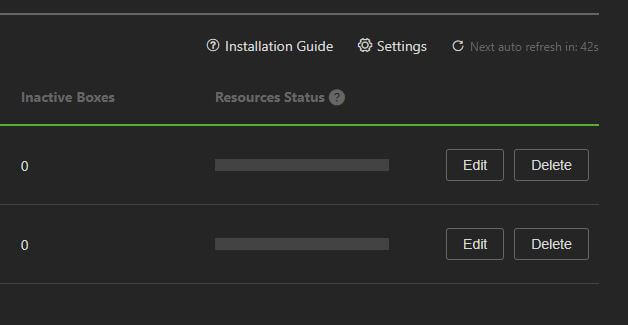
- The Edit box pool window will display.
- Enter a new box pool name and click Confirm.
Adding Agent devices to Cloud services
IMPORTANT: You can only select a device as BYOR in Mediahub after the Agent is successfully installed on it.
After your agent is fully installed, configure it by following these steps, then use it in MediaHub by selecting BYOR under Resources.
To download and install the Agent:
- Click the Manage > Resources tab, then click the Installation Guide link.
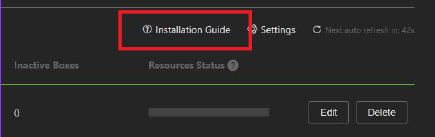
- The Agent installation guide pop-up window will display.
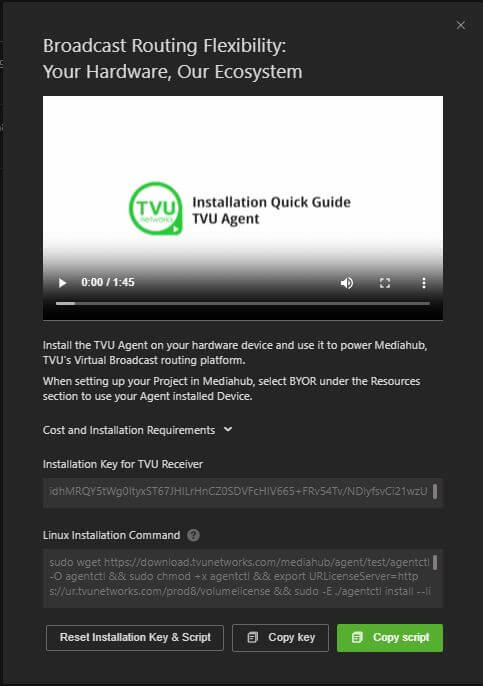
- Review the Installation Quick Guide TVU Agent video tutorial.
- Click the Copy script button and paste the script into your Linux Command line. Run the script to install the Agent on your device.
- To obtain the Installation key, click the Copy key button.
- To Reset the key and script, click the Reset Installation Key & Script button.
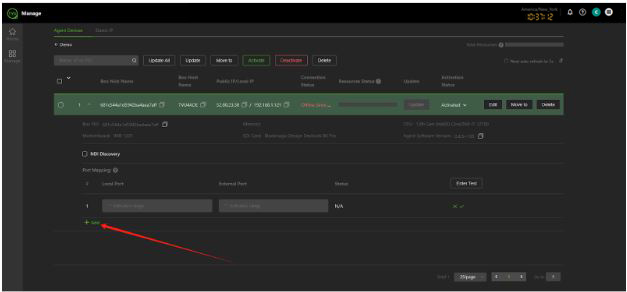
Port mapping
To map your box pool in TVU Home:
- Click the Manage > Resources tab.
- The Manage page opens, displaying your Agent Devices.
- Click the Box pool that requires mapping.
- Click the Box pool checkbox that requires mapping in the Box Pool.
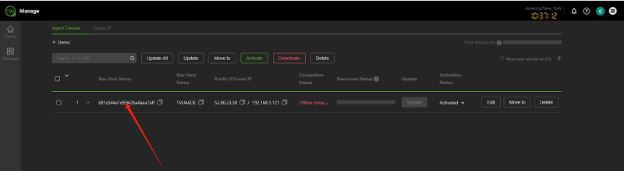
- Click the + Add button.
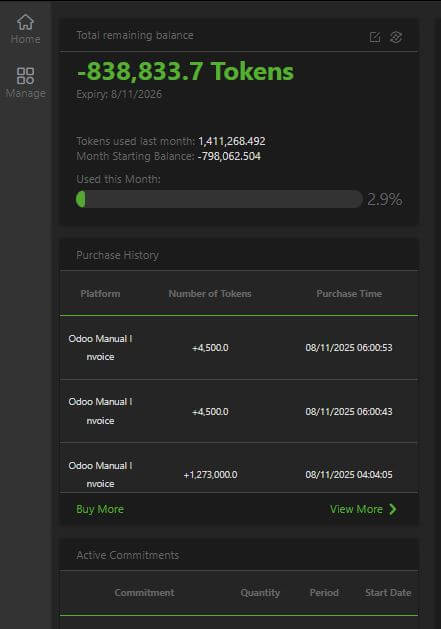
Billing tab
The billing tab allows owner users to:
- Set up a user billing group
- Purchase tokens
- Edit billing information
- Review token purchase history, consumption, and recent TVU Producer and MediaHub activity
- View the total remaining token balance
- View token transaction history
- View the token expiration date
- View Active commitments
User billing group set up
New users will set up their own Billing group when they initially purchase their tokens.
Note: Users must first sucessfully set up a Billing group to purchase tokens. Once the billing group is set up, users can access their Token management page to perform subsequent token related tasks.
To set up your user billing group:
- Click the Manage > Billing tab.
- The Token management page will display.
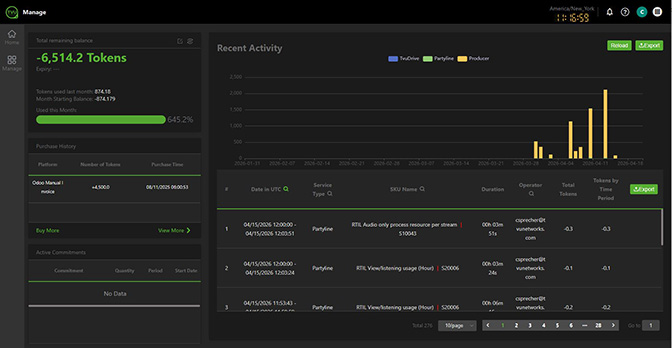
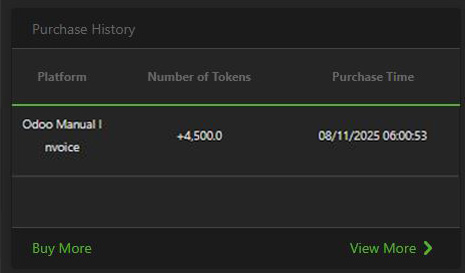
- Click Buy More in the Purchases History panel.
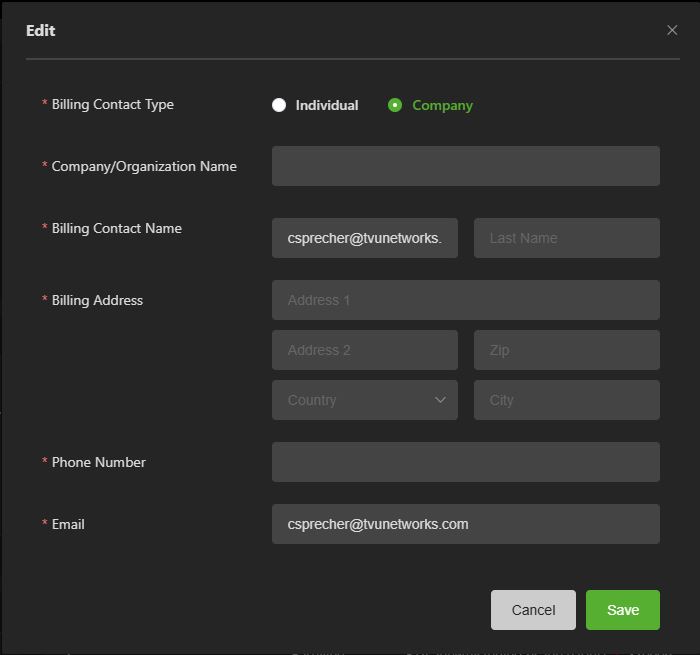
- The Billing info pop-up window will display.
- Enter all required information, click Save, then continue to “Purchasing tokens.”
Editing your billing information
To edit your user billing information:
- Click the Manage > Billing tab.
- The Token management page will display.
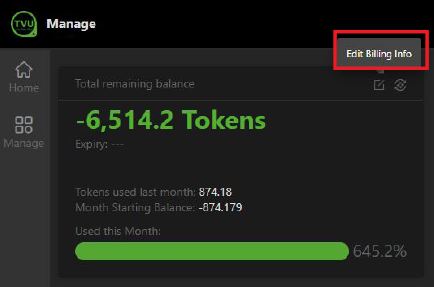
- Click the edit billing icon to edit your billing information before purchasing tokens.
- Make your changes in the Billing group window and click Save.
Purchasing TVU Tokens
- After setting up a user billing group, click Buy More in the Purchase History panel.
- The purchase TVU Tokens pop-up window will appear.
- User’s can purchase Tokens by credit card or > link.
- Continue to one of the following purchasing methods:
Purchase TVU Tokens using a credit card
- To purchase TVU Tokens by credit card, click the View details menu, select the quantity menu, and make a selection.
- Click the Pay button and follow the prompts.
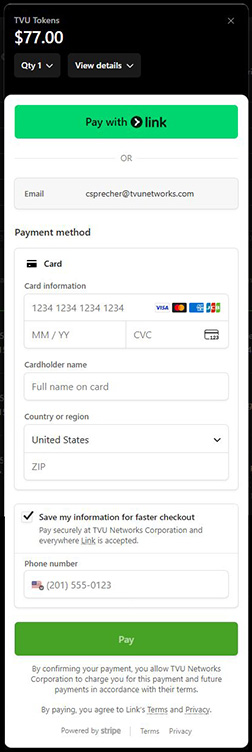
- Your purchase appears in the Purchase History panel.
Purchase TVU Tokens using > link
- To purchase by > link, click the View details menu, select the quantity menu, and make a selection.
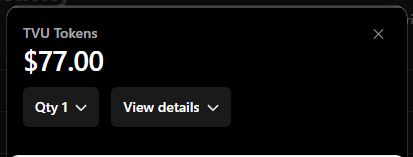
- Click the Pay with > link button.
- The > link window appears. Review your purchase in the gray box.
Note: To create a > link account, click Sign up and follow the prompts.
- Click the Continue to payment button, then follow the prompts.
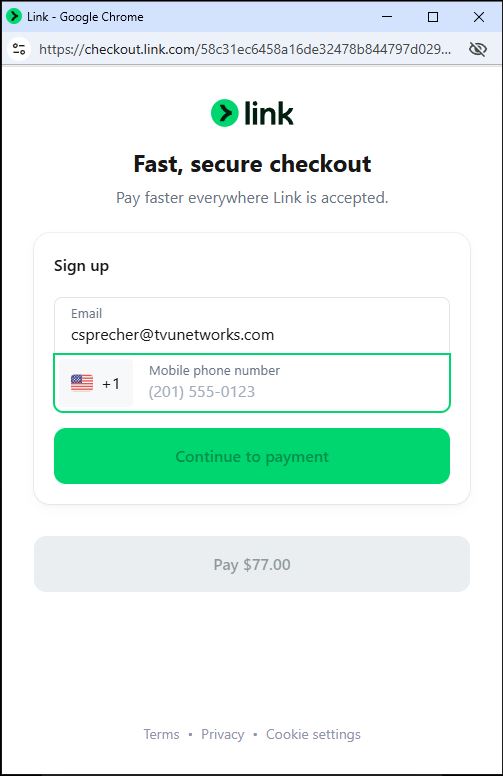
- Your purchase appears in the Purchase History panel.
Transferring tokens
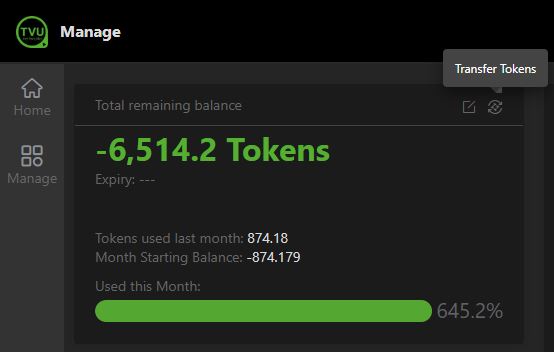
Users can transfer tokens to pre-defined users. Token owners must contact TVU Support to configure token transfers.
To transfer tokens:
- Click the Transfer Token icon at the top of the Token Management panel.
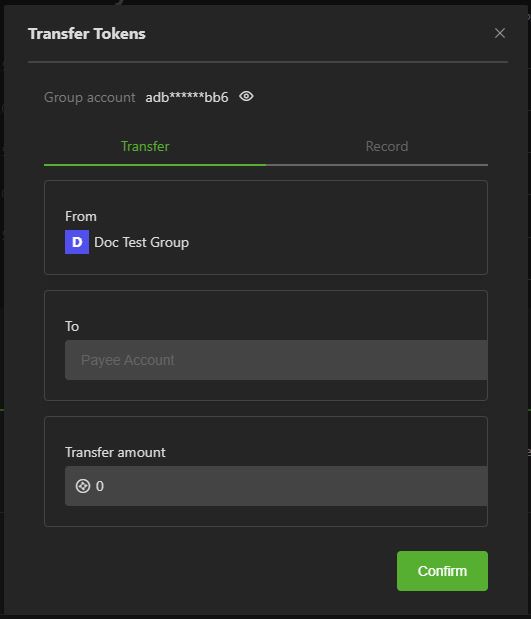
- The Transfer Tokens window will display.
- Enter the group payee account in the To field.
- In the Transfer amount field, enter a token quantity.
- Click the Confirm button.
TVU Home Quick Start Guide – Member role
Signing in to TVU Home
There are two methods “Members” can use to sign in to TVU Home:
- If you are signed in to a TVU service, click the Services (waffle) icon and select Home in the menu.
- Open a web browser and enter: https://home.tvunetworks.com
The Home login page will display.
Sign in with your account credentials:
- Enter your email and password.
- Click Sign in.
TVU Home – Landing page
The Welcome to TVU Home landing page is displayed when you successfully sign in to TVU Home.
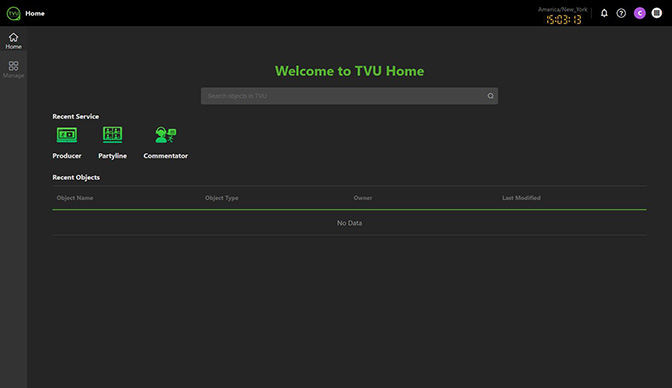
The Home landing page for a Member role includes:
- TVU Home page: The TVU Home landing page provides direct access to recent services, including TVU Producer, Partyline, Commentator, TVU Channel, and TVU Search, without logging in to each service. The Recent Objects panel displays the user’s account activity directly from the Home landing page.
- TVU Services navigation: Users can click the TVU Services navigation (waffle) icon to quickly open a service that is not currently displayed in the Recent Services section on the Home landing page.
- Manage tab: Members and owners can use this tab as their primary tool to perform member-related tasks. Click the Manage tab to access the Members and Resources tabs.
- Members tab: The Members tab opens the Group management dashboard and displays controls based on the Members user role type.
- Resources tab: The Resources tab enables Agent device management, box pool folder set-up and configuration, and Agent software installation for authorized roles. A box pool folder can store multiple boxes, each of which is a physical device on which you have installed the Agent software.
Dashboard interface – Member controls
Group members have administrative rights to their own account.
A Member user can:
- View all users in their group and their status.
- Modify their profile picture (avatar), reset the password, and edit user information.
- View Usage time, storage status, and router usage.
- View authorized basic and optional TVU Services.
- Quit the group.
- View active and inactive Agent devices.
- Add and view active and inactive box pools.
Members tab controls
The Members tab opens the Group Management page. When you sign in as a member user, you can view your group’s members on the Group workspace page.
Note: A Member’s dashboard will display different controls than the Owner role.
The Members tab allows you to:
- Edit your user name
- Add or change your profile picture (avatar)
- Update your Email address
- Reset your Password
- View group member roles and status
- Quit the group
Updating your user information
To update your user information:
- Click the Manage > Members tab.
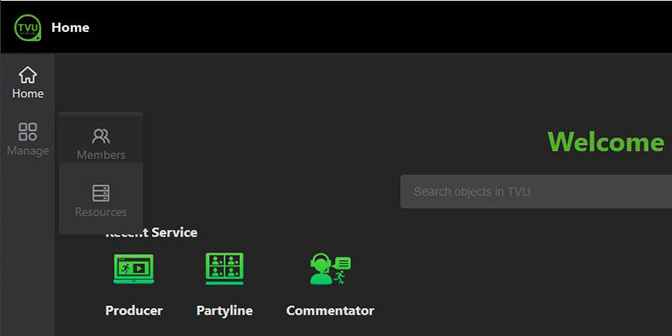
- The Group management dashboard will display.
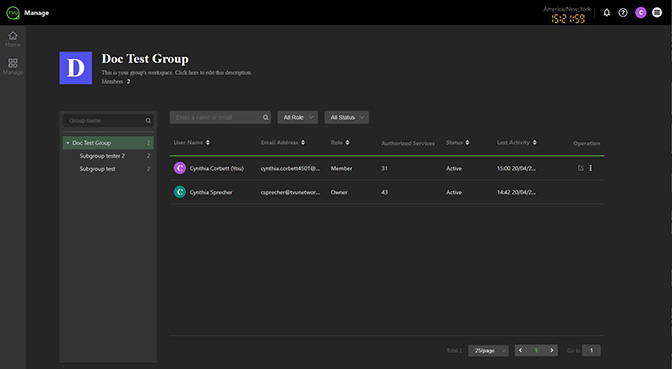
- Click the edit icon in the Operation column.
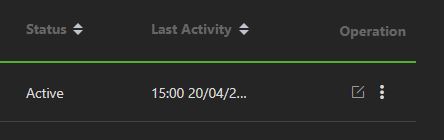
- The Edit User Information page opens.
- Enter a User Name, update your Email, or reset your Password. You may add additional profile information by clicking More to expand the panel.
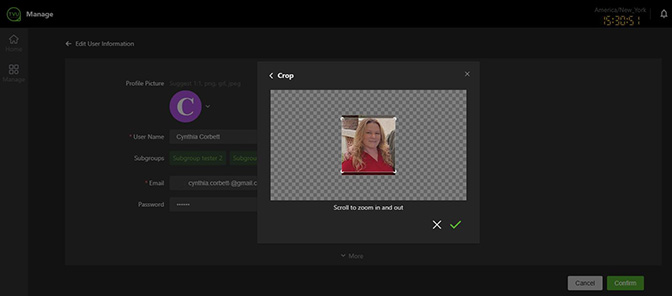
- To update your Profile picture, hover your mouse over the picture and click the Edit icon.
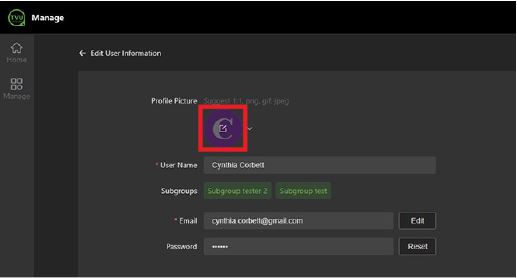
- The Add Profile Picture pop-up will display.
- Drag or Upload a 1:1 image in png, gif, or jpeg format.
- Click the green check mark to save your Avatar picture.
- Click the green Confirm button.
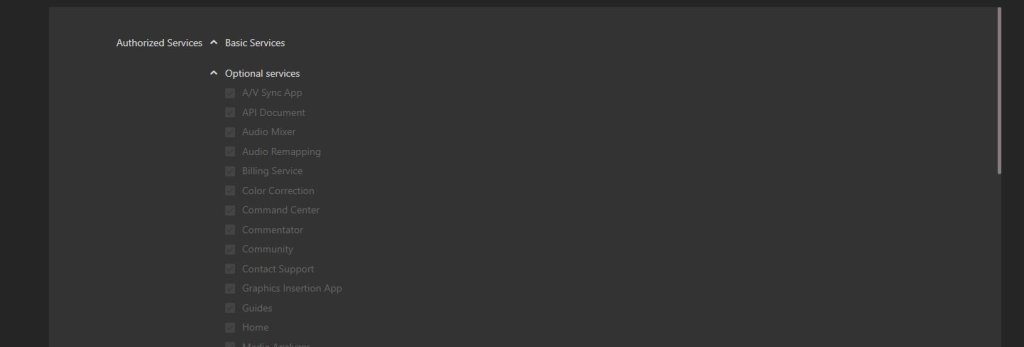
- Scroll down to the Authorized Services panel and select the Optional Services that apply as a member.
Quitting the group
As a Member user, you can quit the group.
To quit the Group:
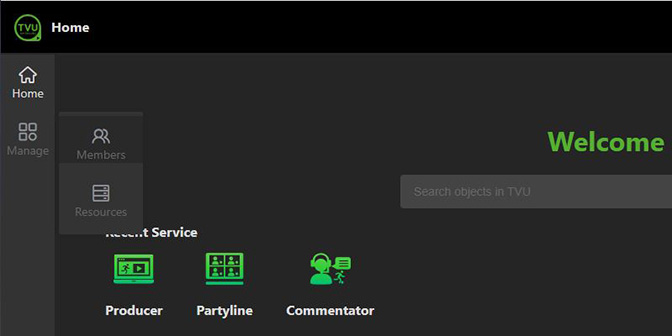
- Click the Manage > Members tab.
- Your Group management page will display.
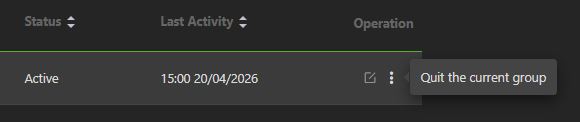
- Hover your mouse over the three-dot icon and click Quit the current group.
Search and filter displayed content
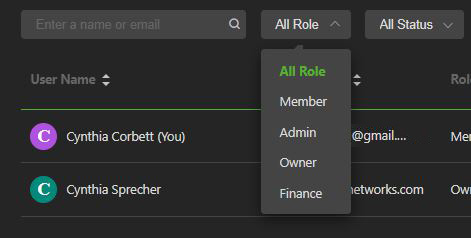
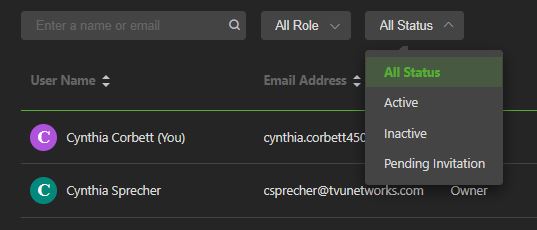
You can search by username and filter what is displayed by selecting a value in the Role and Status drop-down menus.
Resources tab
The Resources tab allows users to manage an Agent device, set up and configure a Box Pool folder, and install Agent software.
Note: A box pool folder can store multiple boxes, each of which is a physical device where the user has installed the Agent software.
The Resources tab allows Agent software to be installed on a device. The Agent integrates with MediaHub instead of using cloud-based resources. The agent can be installed on a user’s resource to run programs.
Adding resources and services
The Resources tab is where Member users can create Box Pool folders and view, add, and manage Agent devices.
To add resources and services:
- Click the Manage > Resources tab.
- The Manage page opens and displays Resources.
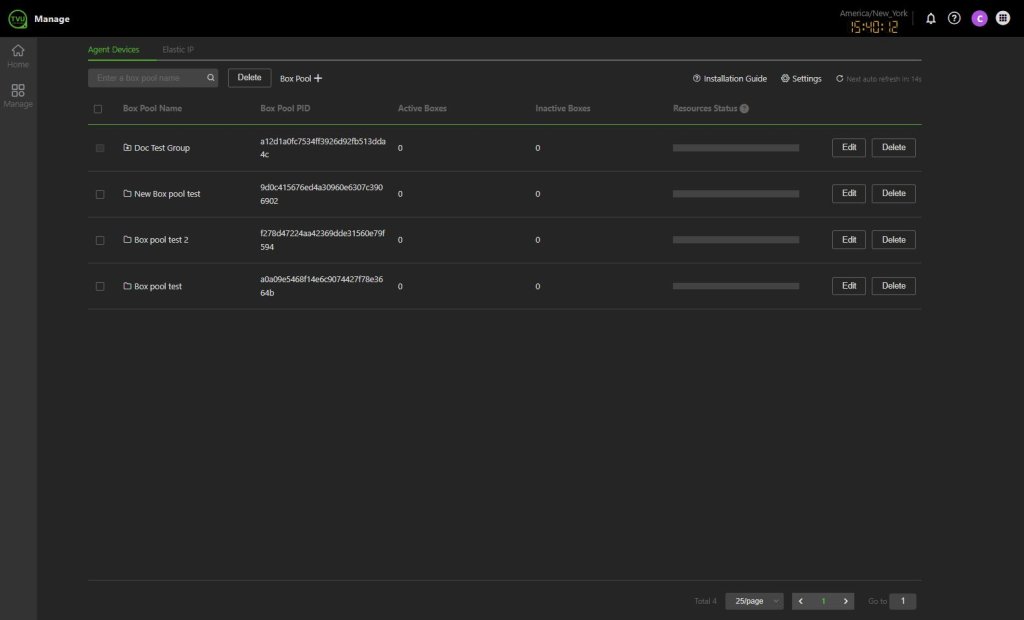
- To add a new Box Pool folder, click the Box Pool +.
- The Create a new box pool window will display.
- Enter a Box Pool Name and click Confirm.
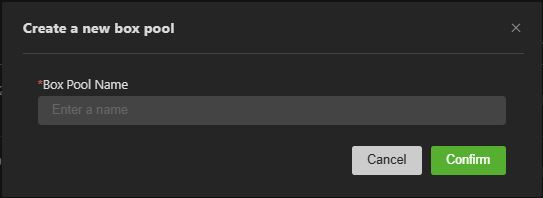
- Your new Box Pool folder has been added to the Agent Devices list.
- To delete a Box Pool, click the Delete button.
- To rename the Box Pool, click the Edit button.
- The Edit box pool window will display.
- Enter a new Box Pool Name and click Confirm.

Adding Agent devices to Cloud services
IMPORTANT: You can only select a device as BYOR in Mediahub after the Agent is successfully installed on it.
After your agent is fully installed, you can configure it by performing the following steps and use it in MediaHub by selecting BYOR under Resources.
To download and install the Agent:
- Click the Manage > Resources tab, then click the Installation Guide link.
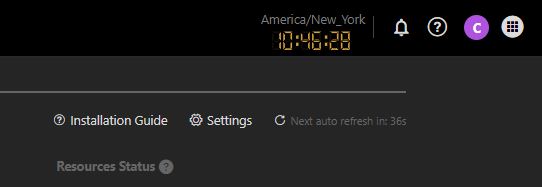
- The Agent installation guide pop-up window will display.
- Watch the Installation Quick Guide TVU Agent video tutorial.
- Click the Copy script button and paste the script into your Linux Command line. Run the script to install the Agent on your device.
- To obtain the Installation key, click the Copy key button.
- To Reset the key and script, click the Reset Installation Key & Script button.
Port mapping
To map your box pool in TVU Home:
- Click the Manage > Resources tab.
- The Manage page opens and displays Resources.
- Click the Box pool that requires mapping.
- Click the Box pool checkbox that requires mapping in the Box Pool.
- Click the + Add button.
TVU Home Quick Start Guide – Admin role
Signing in to TVU Home
There are two methods an “Admin” can use to sign in to TVU Home:
- If you are signed in to a TVU service, click the Services (waffle) icon and select Home in the menu.
- Open a web browser and enter: https://home.tvunetworks.com
The Home login page will display.
Sign in with your account credentials:
- Enter your email and password.
- Click Sign in.
TVU Home – Landing page
The Welcome to TVU Home landing page is displayed when you successfully sign in to TVU Home.
The Home landing page for the admin role includes:
- TVU Home page: The TVU Home landing page provides direct access to recent services, including TVU Producer, Partyline, Commentator, TVU Channel, and TVU Search, without logging in to each service. The Recent Objects panel displays the user’s account activity directly from the Home landing page.
- TVU Services navigation: Users can click the TVU Services navigation (waffle) icon to quickly open a service that is not currently displayed in the Recent Services section on the Home landing page.
- Manage tab: Admins can use this tab as their primary tool to perform member and owner Admin-related tasks. Click the Manage tab to access the Members, Usage, and Resources tabs.
- Members tab: Opens the Group management dashboard and displays controls based on the Admin user role type.
- Usage tab: Users can view their hourly usage history by date, product, and service name.
- Resources tab: The Resources tab enables Agent device management, box pool folder set-up and configuration, and Agent software installation for authorized roles. A box pool folder can store multiple boxes, each of which is a physical device on which you have installed the Agent software.
Dashboard interface – Admin controls
The Admin role has administrative rights to members’ accounts, similar to owners. However, admins can’t edit an Owner role.
- Manage a group and a subgroup workspace
- View Usage time, storage status, and router usage
- Add users and sub-users
- Add resources and services
- Invite new members
- Assign roles to each member
- Add members to other subgroups
- Remove members from subgroups
- Delete or disable a member’s access
- Authorize, manage, and monitor a member’s TVU services
- Add Agent devices to Cloud services
Members tab controls
The Members tab opens the Group management page. When you sign in as an account Admin, you can manage your members on the Group page by clicking the Manage > Members tab.
Note: Admin’s cannot edit Owner users.
The Members tab allows you to:
- Edit your Group Name and add group information
- Add a profile picture (avatar)
- Add subgroup workspaces
- Add a new subgroup user
- Add an email domain name to your group
- Assign roles to sub-users
- Manage all aspects of your group
Updating your Group information
To update your Group information:
- Click the Manage > Members tab.
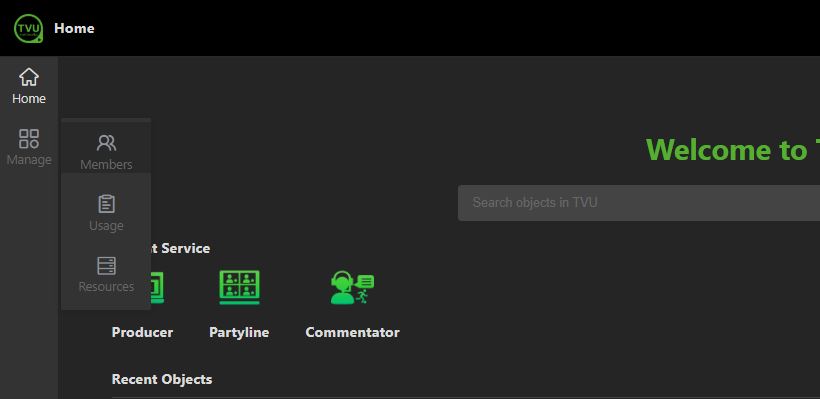
- The Group Management dashboard will display.
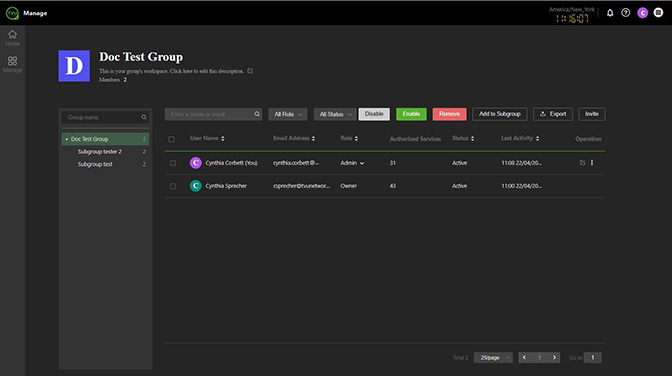
- Click the edit icon below the Group name.
- The Edit Group Information page opens.
- Enter a Group Name and page Description.
- To update your Profile picture, hover your mouse over the picture and click the Edit icon.
- The Add Profile Picture pop-up will display.
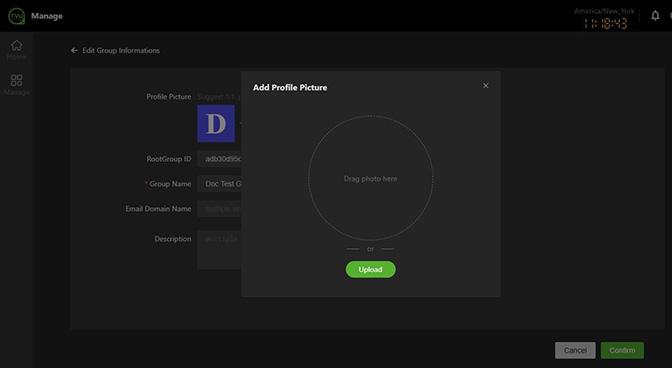
- Drag or Upload a 1:1 image in png, gif, or jpeg format.
- Click the green check mark to save your Avatar picture.
- Click the green Confirm button.
- Scroll down to the Authorized Services panel and select the Optional Services that apply or disable services.
- Click the green Confirm button.
Editing a user’s information
To edit a user’s information:
- Select your Group Name in the left panel.
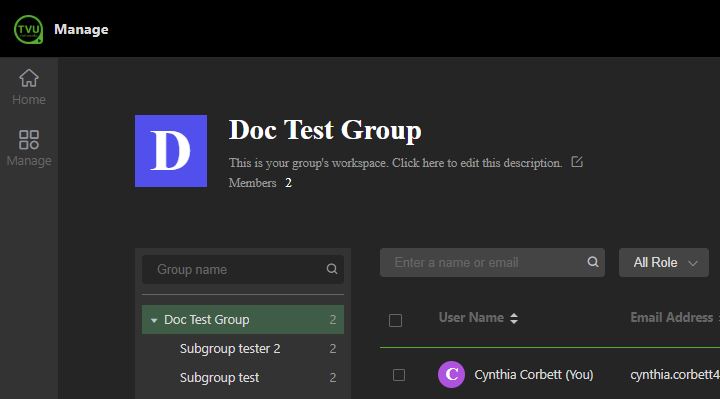
- Highlight (a user) in the user list.
- Click the edit icon in the Operation column.
- The Edit User Information window opens.
- Enter any required edits.
- If you want to add the new user to an existing subgroup, click the Subgroup edit icon and select a subgroup.
- Scroll down to the Authorized Services panel and select the Optional Services you want to assign to the user.
- Click the green Confirm button.
Creating a subgroup
When you create a subgroup, it becomes part of your group workspace. You can invite group members as sub-users into this workspace and assign roles to each user.
To create a subgroup:
- Click the Manage > Members tab.
- Hover your mouse over Group name, then click the Plus.
- The Create a subgroup window will display.
- Enter a subgroup name, your Email Domain Name (if you want to assign a domain to the subgroup), and a description of your subgroup (optional).
- Click Confirm.
- The new subgroup is displayed under your Group name.
- To configure and manage Subgroups, click a Subgroup name in the left panel to open the Subgroup management page.
- All Subgroups will display.
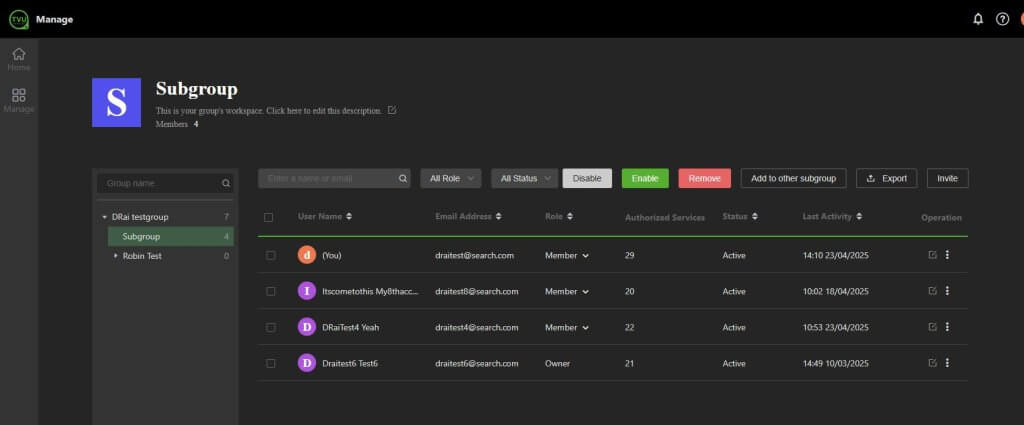
- Click the Edit icon in the Operation column to edit and manage a Subgroup.
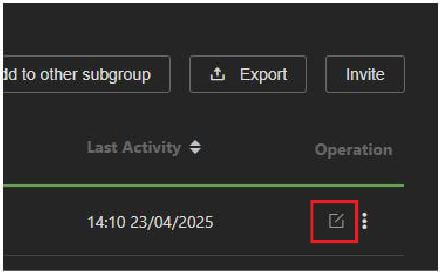
- The Edit User Information window will display.
- Configure the Subuser’s information, then click Confirm.
- When finished, click ‹— Edit User Information at the top of the page to return to the Subgroup page.
Inviting users to your group
After you have created your subgroups, you can invite users to your group and subgroups.
Note: The invitation procedure only accepts users with an active TVU account.
To invite a user to your group:
- Click to highlight your Group name.
- Click the Invite button.
- The Invite window will display.
- Enter the Email address of the user you want to invite to your group, then click Send Invitation.
- The dashboard will display the invited user and a “Pending Invitation” notification in the dashboard status column until the invitation is accepted.
- The owner can cancel the invitation by clicking the green Cancel Invitation in the Operation column.
- The invited user receives an email to accept the invitation. After accepting the invitation, the TVU Home page will open. The new user clicks the Bell icon at the top-right of the page, then clicks the Join or Ignore button to complete the process.
After joining the group, the user’s name is displayed in the user list. Users can click the edit icon on the Groups page to edit their user information.
Note: The group admin receives a Bell icon notification when the user has joined the group.
Adding a role to the new user
Owners can assign a new user a Member or Admin role. The Admin role allows co-admin rights, whereas the Member role does not.
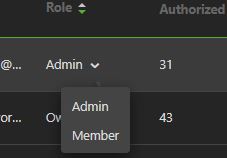
To add a role to the new user, click the user’s Role drop-down menu and select Admin or Member.
Note: Choosing Admin allows the user administrative rights.
Adding members to other subgroups
To add a user to a subgroup:
- Click the three-dot icon and select Add to other subgroup.
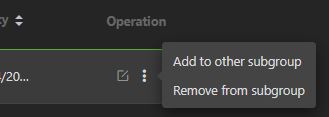
- Select the Subgroup checkbox in the Add to Subgroup window, then click Confirm.
Removing a member from a subgroup
There are two methods to remove a member from a subgroup:
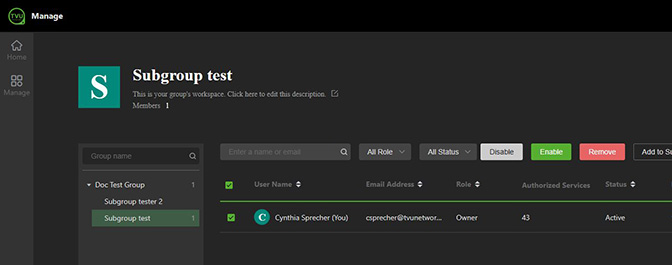
- To remove a member from a Subgroup, locate the Member’s name, click the three-dots in the Operation column, then click Remove from subgroup.
- To remove a member from a Subgroup, select the subgroup, click the checkbox next to the member’s name, and then click the red Remove button.
Deleting or disabling a member’s access
To delete or disable a member’s access:
- Click the three-dot icon and select Disable or Delete member from the menu.
- If you need to batch Enable or Disable a group of users, select each user’s checkbox and click the Disable or Enable button.
Authorizing, managing, and monitoring a member’s services
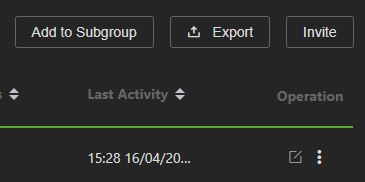
As a group Admin, you can authorize access to services and manage group and subgroup users from the Manage > Members tab. Users and their activity are easily monitored and sorted, and can be exported to Excel by clicking the Export button.
Usage tab
The Usage tab displays the Usage time overview.
- Click the Manage > Usage tab. The Manage screen will display Usage options.
- Click View More to display detailed information. Hover over the charts for more information.
Resources tab
The Resources tab allows users to manage an Agent device, set up and configure a Box Pool folder, and install Agent software.
Note: A Box Pool folder can store multiple boxes, each of which is a physical device where the user has installed the Agent software.
The Resources tab allows Agent software to be installed on a device. The Agent integrates with MediaHub instead of using cloud-based resources. The agent can be installed on a user’s resource to run programs.
Adding resources and services
The Resources tab is where Admins can create Box Pool folders and view, add, configure, and manage Agent devices.
To add resources and services:
- Click the Manage > Resources tab.
- The Manage page opens and displays Resources.
- To add a new Box Pool folder, click Box Pool +.
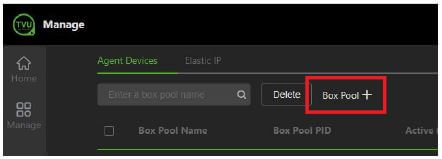
- The Create a new box pool window will display.
- Enter a Box Pool Name and click Confirm.
- Your new Box Pool folder has been added to the Agent Devices list.
- To delete a Box Pool, click the Delete button.
- To rename the Box Pool, click the Edit button.
- The Edit box pool window will display.
- Enter a new box pool name and click Confirm.
Adding Agent devices to Cloud services
IMPORTANT: You can only select a device as BYOR in Mediahub after the Agent is successfully installed on it.
After your agent is fully installed, configure it by following these steps, then use it in MediaHub by selecting BYOR under Resources.
To download and install the Agent:
- Click the Manage > Resources tab, then click the Installation Guide link.
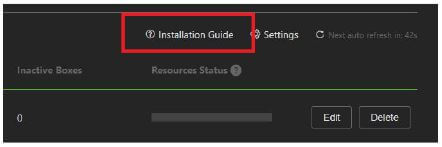
- The Agent installation guide pop-up window will display.
- Review the Installation Quick Guide TVU Agent video tutorial.
- Click the Copy script button and paste the script into your Linux Command line. Run the script to install the Agent on your device.
- To obtain the Installation key, click the Copy key button.
- To reset the key and script, click the Reset Installation Key & Script button.
Port mapping
To map your box pool in TVU Home:
- Click the Manage > Resources tab.
- The Resources page opens.
- Click the Box Pool that requires mapping.
- Click the Box Pool checkbox that requires mapping in the Box Pool.
- Click the + Add button.
TVU Home Quick Start Guide – Finance role
Signing in to TVU Home
There are two methods “Finance” can use to sign in to TVU Home:
- If you are signed in to a TVU service, click the Services (waffle) icon and select Home in the menu.
- Open a web browser and enter: https://home.tvunetworks.com
The Home login page will display.
Sign in with your account credentials:
- Enter your email and password.
- Click Sign in.
TVU Home – Landing page
The Welcome to TVU Home landing page is displayed when you successfully sign in to TVU Home.
The Home landing page for the admin role includes:
- TVU Home tab: The TVU Home landing page provides direct access to recent services, including TVU Producer, Partyline, Commentator, TVU Channel, and TVU Search without logging in to each service. The Recent Objects panel displays the user’s account activity directly from the Home landing page.
- TVU Services navigation: Users can click the TVU Services navigation (waffle) icon to quickly open a service that is not currently displayed in the Recent Services section on the Home landing page.
- Manage tab: Finance users can use this tab as their primary tool for finance – and owner-related tasks. Click the Manage tab to access the Members, Usage, Resources, and Billing tabs.
- Members tab: Opens the Group management dashboard and displays controls based on the Finance user role type.
- Usage tab: Users can view their hourly usage history by date, product, and service name.
- Resources tab: The Resources tab enables Agent device management, box pool folder set-up and configuration, and Agent software installation for authorized roles. A box pool folder can store multiple boxes, each of which is a physical device on which you have installed the Agent software.
Dashboard interface – Finance controls
Finance users only have administrative rights to their own account. They are not part of any other group.
Finance account users can:
- Edit your user name and add a description
- Add a profile picture (avatar)
- View usage time
- Purchase tokens
- Review token purchase history and recent TVU Product usage activity.
- View the total remaining token balance
- View token transaction history
- View the token expiration date
- View active commitments
Updating your workspace information
To update your Group information:
- Click the Manage > Members tab.
- The Group Management dashboard will display.
- Click the edit icon below the Group name.
- The Edit User Information window opens.
- Enter a User Name, update your Email, or reset your Password. You may add additional profile information by clicking More to expand the panel.
- To update your Profile picture, hover your mouse over the picture and click the Edit icon.
- The Add Profile Picture pop-up will display.
- Drag or Upload a 1:1 image in png, gif, or jpeg format.
- Click the green check mark to save your Avatar picture.
- Click the green Confirm button.
- Scroll down to the Authorized Services panel and select the Optional Services that apply to your role.
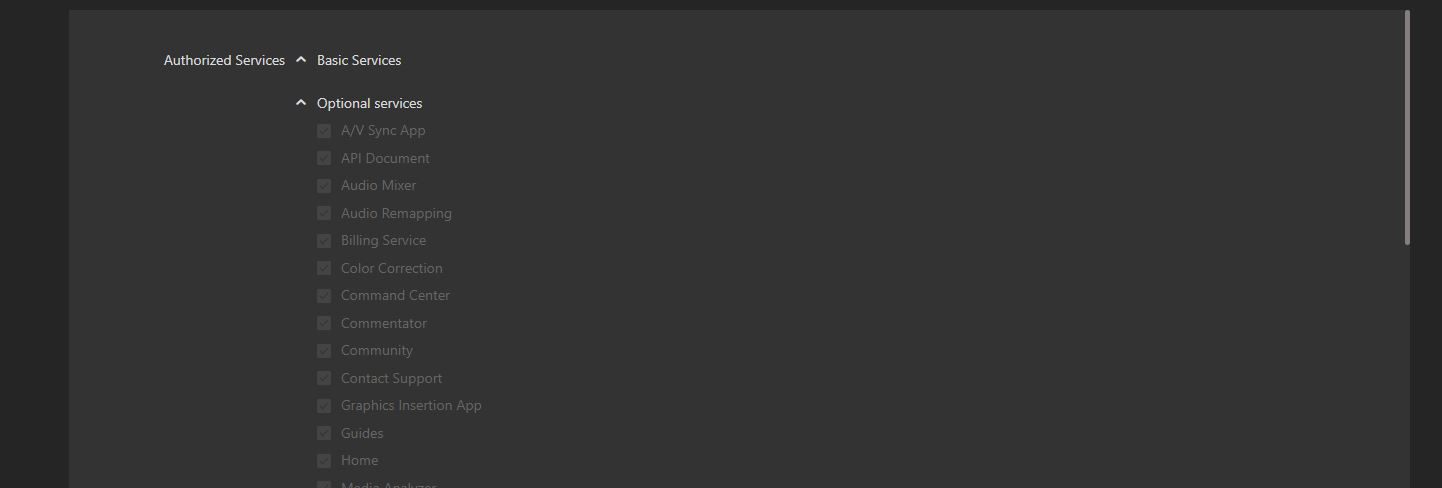
- Click the green Confirm button.
Usage tab
The Usage tab displays the Usage time overview.
- Click the Manage > Usage tab. The Usage window opens.
- Click View More detailed information.
- Hover over the charts for more information.
Resources tab
The Resources tab allows users to manage an Agent device, configure a box pool folder, and install Agent software.
Note: A box pool folder can store multiple boxes, each of which is a physical device where the user has installed the Agent software.
The Resources tab allows Agent software to be installed on a device. The Agent integrates with MediaHub instead of using cloud-based resources. The agent can be installed on a user’s resource to run programs.
Adding resources and services
The Resources tab is where Finance users can create Box pool folders and view, add, configure, and manage Agent devices.
To add resources and services:
- Click the Manage > Resources tab.
- The Manage page opens and displays Resources.
- To add a new Box Pool folder, click the Box Pool +.
- The Create a new box pool window will display.
- Enter a Box Pool Name and click Create.
- Your new Box Pool folder has been added to the Agent Devices list.
- To delete a Box Pool, click the Delete button.
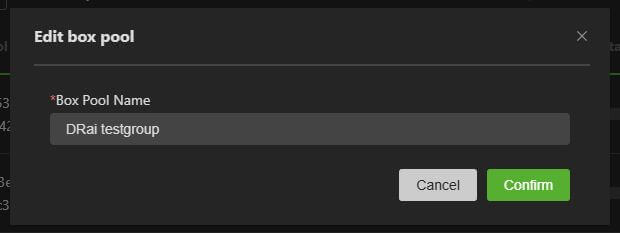
- To rename the Box Pool, click the Edit button.
- The Edit box pool window will display.
- Enter a new Box Pool Name and click Confirm.
Adding Agent devices to Cloud services
IMPORTANT: You can only select a device as BYOR in Mediahub after the Agent is successfully installed on it.
After your agent is fully installed, you can configure it by performing the following steps and use it in MediaHub by selecting BYOR under Resources.
To download and install the Agent:
- Click the Manage > Resources tab. Click Installation Guide.
- The Agent installation guide pop-up window will display.
- Review the Installation Quick Guide TVU Agent video tutorial.
- Click the Copy script button and paste the script into your Linux Command line. Run the script to install the Agent on your device.
- To obtain the Installation key, click the Copy key button.
- Click the Reset Installation Key & Script button to reset the key and script.
Port mapping
To map your box pool in TVU Home:
- Click the Manage > Resources tab.
- The Manage page opens and displays Resources.
- Click the Box Pool that requires mapping.
- Click the Box Pool checkbox that requires mapping in the Box Pool.
- Click the + Add button.
Billing tab
The billing tab allows finance users to:
- Set up a user billing group
- Purchase tokens
- Edit billing information
- Review token purchase history, consumption, and recent TVU Producer and MediaHub activity
- View the total remaining token balance
- View token transaction history
- View the token expiration date
- View Active commitments
User billing group set up
New users will set up their own Billing group when they initially purchase their tokens.
Note: Users must first sucessfully set up a Billing group to purchase tokens. Once the billing group is set up, users can access their Token management page to perform subsequent token related tasks.
To set up your user billing group:
- Click the Manage > Billing tab.
- The Token management page will display.
- Click Buy More in the Purchases History panel.
- The Billing info pop-up window will display.
- Enter all required information, click Save, then continue to “Purchasing tokens.”
Editing your billing information
To edit your user billing information:
- Click the Manage > Billing tab.
- The Token management page will display.
- Click the Edit billing info icon to edit your billing information before purchasing tokens.
- Make your changes in the Billing group window and click Save.
Purchasing tokens
- After setting up a user billing group, click Buy More in the Purchase History panel.
- The purchase TVU Tokens pop-up window will appear.
- User’s can purchase Tokens by credit card or > link.
- Continue to one of the following purchasing methods:
Purchase by credit card
- To purchase by credit card, click the View details menu, and then select the quantity menu and make a selection.
- Click the Pay button and follow the prompts.
- Your purchase appears in the Purchase History panel.
Purchase by > link
- To purchase via the> link, click the View details menu, then select the quantity menu and make a selection.
- Click the Pay with > link button.
- The > link window appears. Review your purchase in the gray box.
Note: To create a > link account click Sign up and follow the prompts.
- Click the Continue to payment button, then follow the prompts.
- Your purchase appears in the Purchase History panel.
Transferring tokens
Users can transfer tokens to pre-defined users. Token owners must contact TVU Support to configure token transfers.
To transfer tokens:
- Click the Transfer Token icon at the top of the Token Management panel.
- The Transfer Tokens window will display.
- Enter the group payee account in the To field.
- In the Transfer amount field, enter a token quantity.
- Click the Confirm button.
© Copyright 2026 TVU Networks Corporation, All rights reserved in all media.
Document Part Number: TVU Home Quick Start User Guide Rev C EN 05-2026
Related tips
